Cull photos fast on a Mac
Hold the arrow key. Every frame is sharp.
Culling is fast when the app never makes you wait: the next photo is there before your finger lifts, one key gives it a star, and the burst of forty is one photo, not forty. That's what PhotoEngineer is built for.
Mac with Apple silicon · macOS 26

Why culling feels slow
You're waiting for RAWs to develop.
Every RAW file carries a full-size JPEG the camera made when you pressed the shutter: the same picture you saw on the back of the camera. A culling app shows that. An editor like Lightroom develops the RAW itself, which is slower, and it has to import the photos and build previews before you can move through them quickly.
For deciding which photos are keepers, the camera's preview is all you need. Sharp or not, eyes open or not, the moment or a frame after it. So cull first, in an app that only shows previews, and give your editor just the picks.
How fast
Measured on a real job.
| 1,920 Nikon Z 8 RAWs from one card | Result |
|---|---|
| Open the folder, read every rating | 0.11 seconds |
| First photo full screen | 0.32 seconds |
| Hold → at 25 photos a second, 300 frames | 300 of 300 sharp |
| Hold → at 33 photos a second, 300 frames | 300 of 300 sharp |
| Jump to the far end of the folder | The screen of thumbnails in 0.61 seconds |
MacBook Pro with M4 Max, October 2026. Slower Macs will take a little longer.
"Sharp" means the full preview, not a blurry thumbnail standing in while the real one loads. PhotoEngineer reads the photos ahead of where you are, so holding an arrow key doesn't outrun it.
The tricks that save the time
Fewer photos to look at, fewer keys to press.
- Bursts as one
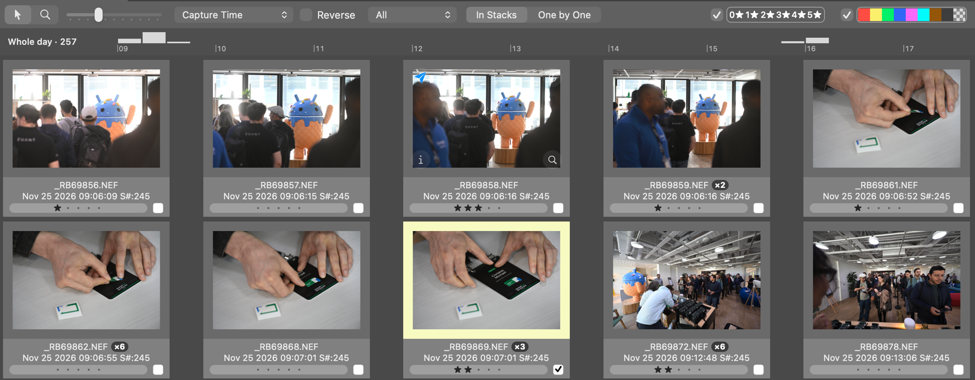
- Stacks bunches frames that are nearly identical, so twenty of one moment show as one with a small ×20. Here, 257 photos became 136 to look at. ↑ and ↓ go through a stack when you want to pick the sharpest.
- One key per decision
- 1 to 5 for stars, 0 to clear, T to tag, ⌘1 to ⌘8 for colour classes. Select several and the key applies to all of them. ⌘Z undoes.
- Zoom that stays put
- Click to zoom on the eyes, and the next frame opens zoomed on the same spot. Follow face keeps the zoom on the same person even when they've moved.
- Side by side
- Press V for two frames next to each other; L locks them so they zoom and pan together. The Faces panel shows the same face from up to 12 frames of a stack at once, so the one with eyes open jumps out.
- Show only what's left
- F1 everything, F3 tagged, F4 untagged; filter by stars or colour. Do a fast first pass, then look only at the maybes.
- The ones you locked in the camera
- Protected a frame on the back of the camera because it was the one? The key button beside the star filter shows only those, the crossed-out key only the rest. It works on a card straight off the reader too, and your Tag box stays free for your own picks.
- A safety catch
- With every photo selected, a stray key won't re-rate the whole shoot. A banner tells you to right-click instead if you really mean it.
After the cull
Your picks go where you edit.
Stars, colour labels and tags are written into each RAW's XMP sidecar, the standard file Lightroom and most other editors read. Import into Lightroom and they're there. We checked: 15 out of 15 ratings matched in the catalogue, including over an Aftershoot sidecar, whose edits arrived intact.
Or let the Lightroom plug-in bring just your picks across as a collection. Your RAW files are never changed.
Not AI
PhotoEngineer doesn't choose for you. Stacks only groups frames that are nearly the same; which one is best is your call. If you already use an AI culling service, its sidecar edits are left exactly as they were.
Questions
The short answers.
What's the fastest way to cull photos on a Mac?
Use an app that shows each RAW's built-in preview instead of developing it, rate with single keys, stack bursts, and send only the picks to your editor.
Why is culling in Lightroom slow?
It has to import and build previews first, and it renders RAWs rather than showing the camera's own preview.
Will Lightroom see my stars and tags?
Yes. They're in the XMP sidecar, which Lightroom reads on import. Already imported? Select the photos in Lightroom and choose Metadata › Read Metadata from Files.
Which cameras?
Any RAW macOS can read (every camera on Apple’s camera list, and DNG from any camera), plus JPEG, HEIC, TIFF, PSD, PNG, WebP, AVIF and JPEG XL, and MOV and MP4 video.
Coming from Photo Mechanic®?
Same keys, same 8 colour classes, same tag. More on switching.
Can I try it first?
Yes. Everything works free for 14 days.