Features
Everything it does.
At its heart PhotoEngineer views, rates and culls RAWs fast, and keeps every card safely backed up. This is the rest of the kit, for when you want the detail.
The new look
Same layout. A bit more polish.
Subtle shading on the toolbars, the sidebar and the thumbnail frames, and a darker contact sheet so your photos are the brightest thing on screen. Home has glass tiles with their own icons. Nothing has moved: every button, menu and key is where it was.
Prefer the old look? Settings › Most Used › New look switches it off straight away.

Projects
Step into a project.
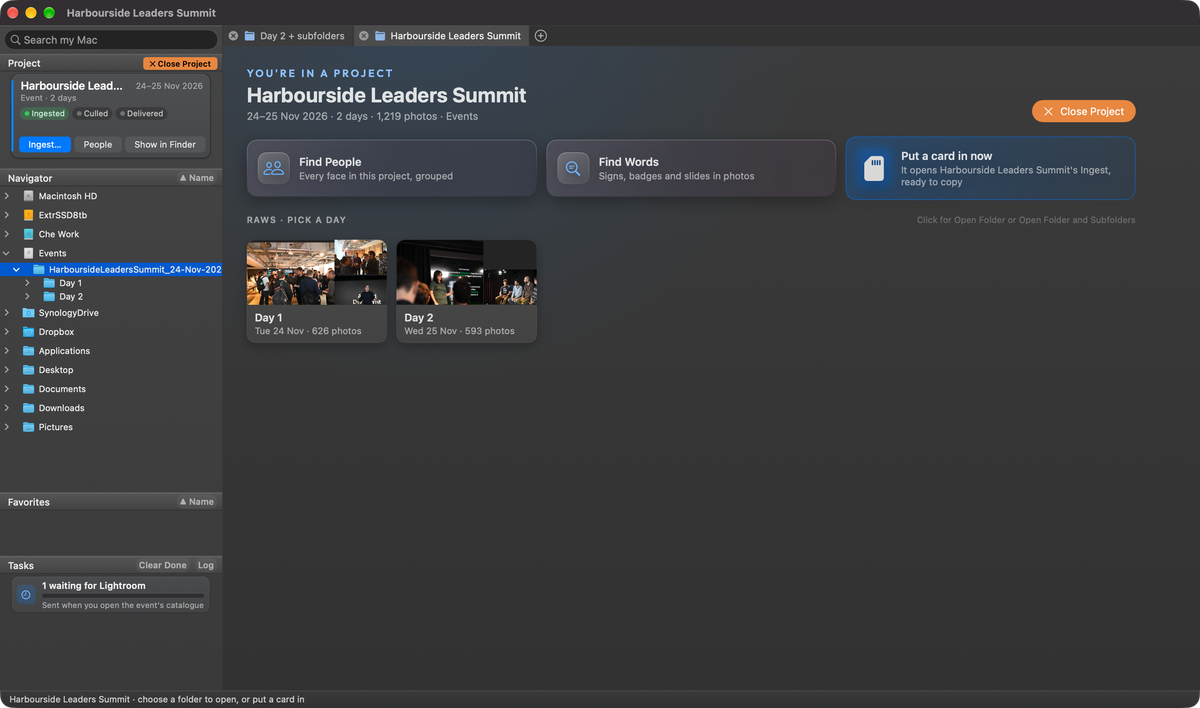
Each project in the sidebar is a card with its dates and Ingested, Culled and Delivered ticks. Double-click one and you're in it: the Navigator opens at its folder, and the contact sheet shows a tile for each day with a few of its photos and the count, plus Find People and Find Words for the whole event.
Click a day for Open Folder or Open Folder and Subfolders. Put a card in while it's showing and the project's own Ingest opens, already filled in. Close Project takes you back to all of them.
Metadata Info
Caption with a big photo.
The photo in Metadata (IPTC) Info grows with the window, so you can see exactly what you're captioning. Photo placement puts it to the right of the fields, the left, or in the middle between the two columns. Save & Next brings up the next photo just as big.
Press i on a photo, or the i on a thumbnail.

Camera Clock
Did you forget to sync your camera times?
Two or more cameras at an event never agree on the time. One is a minute out, and the second shooter is still on summer time. Sort by capture time and the day reads in the wrong order.
Lightroom and Photo Mechanic® can shift capture times, but you photograph a clock, read it and type the time in, one camera at a time. PhotoEngineer reads it for you.
-
One
Photograph the clock
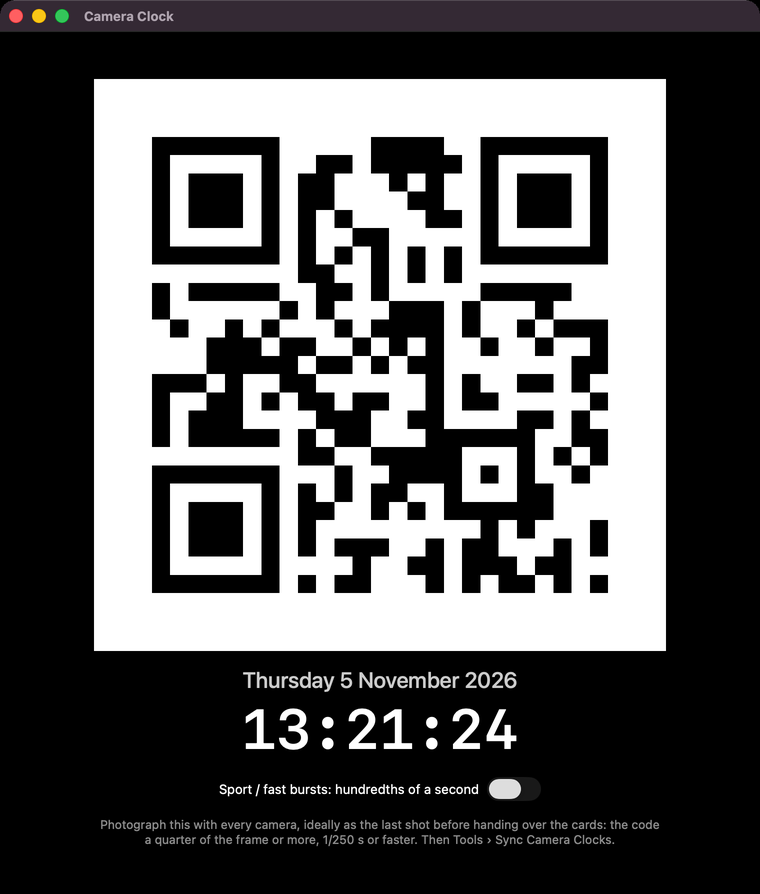
Tools › Camera Clock shows a QR code of your Mac's time. Each camera takes one photo of it, ideally the last shot before the card is handed in.
-
Two
PhotoEngineer reads it
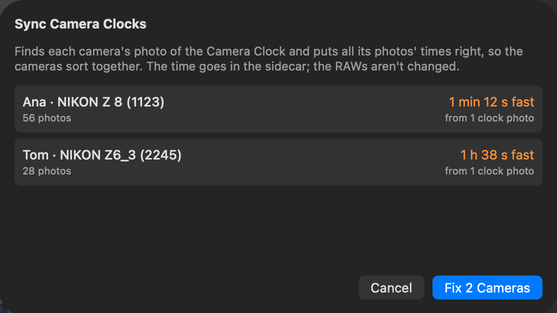
It finds that photo on each card, reads the code and works out how far off each camera's clock is. Here Ana's Z 8 is a minute fast and Tom's Z6 III is an hour out. Then it puts every photo's time right. Nothing to read off a screen, nothing to type, no sums.
-
Three
Right before it's copied
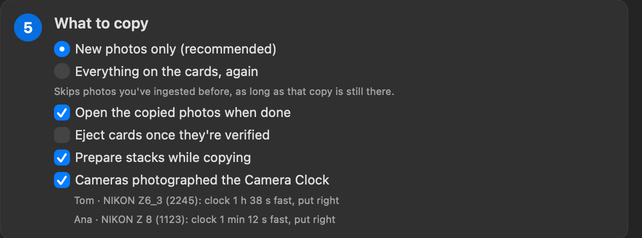
At ingest it's one tick-box: "Cameras photographed the Camera Clock". The times are fixed before anything is copied, so day folders, batches and the order are right first time. Or run Tools › Sync Camera Clocks afterwards.

Sport mode, to the hundredth
Switch on sport mode and the clock shows hundredths of a second, so bursts from several cameras interleave frame by frame.
It copes with the awkward ones
A camera on a different time zone, a summer-time change, a camera whose battery died and reset it to 2020. Your client gets the day in the order it happened.
The corrected time goes in the sidecar. Your RAW files aren't changed.
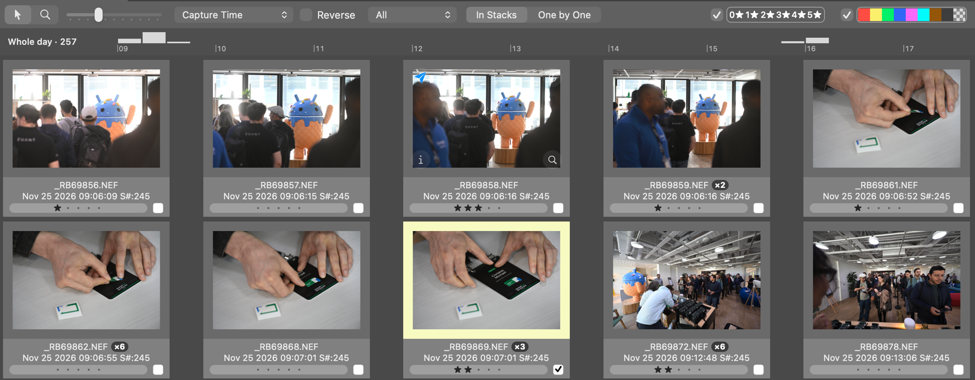
Stacks
Eighty frames of one moment. Look at four.
Shoot at twenty frames a second and one person at a microphone is eighty near-identical photos. In Stacks bunches the ones that are very alike, so the contact sheet shows one of each moment with a small ×6 where the rest are. Open a stack to flick through it, or arrow down through it in Preview. Here, 257 photos became 136 to look at.
It isn't AI deciding what you meant. It only stacks frames that are nearly the same. On or off with one click (View › In Stacks); PhotoEngineer remembers your choice for each folder. Stacks build while the card copies in; if you had it off, switch it on later and it catches up in the background.
Photo Mechanic® 6 doesn't have this.
People
Everyone at the event. One click each.
After you ingest an event, PhotoEngineer finds every face in the background while you get on with culling. A 4,000-photo day takes about a minute. The faces are grouped into people, with whoever's in the most photos first, for the whole event or one day.
Click a head for every photo of that person, biggest face first, so the close-ups lead and the crowd shots come last. Name someone once. If the same person turns up twice, drag one head onto the other.
It all runs on your Mac. Nothing is uploaded, and there's no celebrity database.
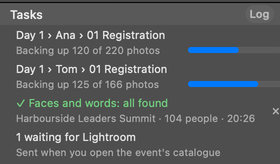
Image › People… (⌥⌘P), or right-click a project or a folder.
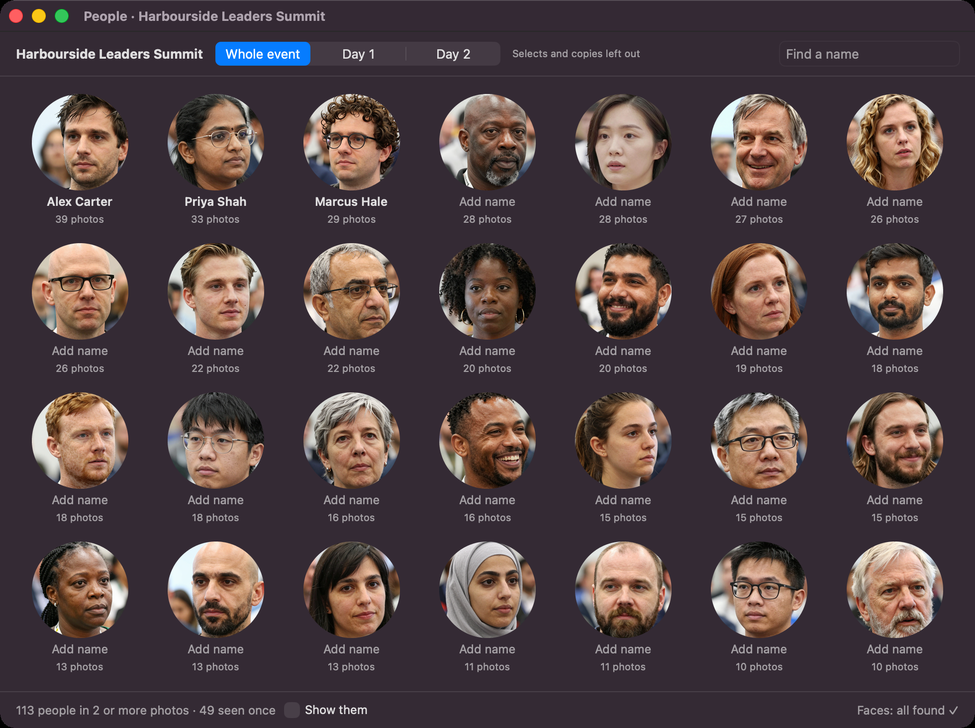

Click a head and that person opens in their own tab, sorted by Face Size.

Find words in photos
Search for what's written in the picture.
Name badges, sponsors, slide titles, room signs. Type "HubSpot" and you get the 23 photos with HubSpot on a badge or a screen. It allows for a letter or two being misread.
Words are read at the same time as faces, on your Mac, with no uploads. Find (⌘F) looks in them too.
Edit › Find Words in Photos… (⌥⌘F).
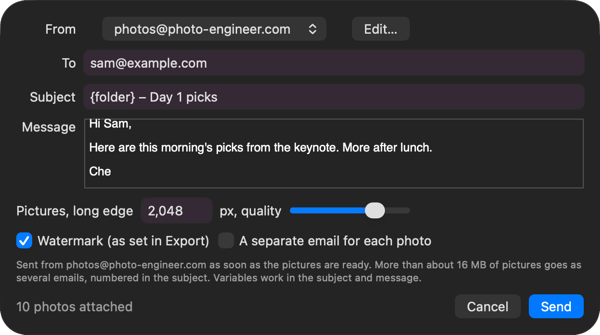
Email from Gmail
Picks to the client, straight from the cull.
File › Send Photos via Email (⇧⌘E) sends the selected photos from your own Gmail, iCloud or other mail account, without opening a mail app. They're resized as they go and can carry your watermark. Big batches go as several emails, numbered "(1 of 3)", and the Tasks panel keeps "Emailed 12 photos · sent 14:32" so you know it went.
Set up once with an app password from your Google account; Send Test Email checks it. The password stays in your Mac's Keychain.
Drag and drop
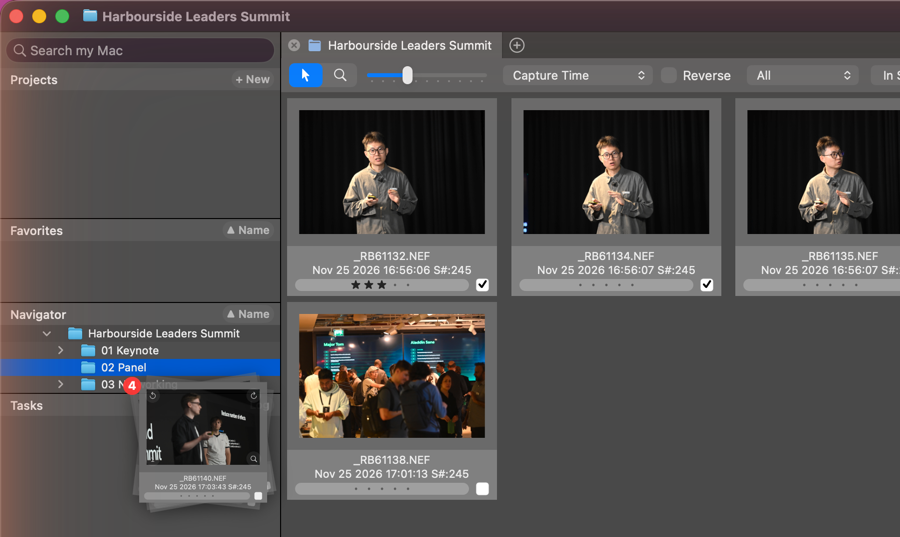
Drag photos to a folder. Everything goes with them.
Drop photos on a folder in the Navigator to move them; onto another disk, they're copied (hold ⌥ to copy on the same disk). Sidecars, the JPEG of a RAW+JPEG pair and sound files go too, every copy is checked before anything is removed, and the project's backup follows.
Drop photos on a keyword to add it; a structured keyword keeps its place in Lightroom's tree. Or drag them out into the Finder or any other app.

During the event
"Can we have that one now?"
Right-click a photo › Send to Live-Requests and name it as the client asked. It lands in Lightroom in a collection of its own, preset on, ready to edit; then export it straight into the folder PhotoEngineer made when you named it.
The Lightroom plug-in
Installs itself. Asks once.
It installs the first time PhotoEngineer opens. New Project can make the event's catalogue for you (Lightroom Classic 15.4 or later), or open one you made and it asks once to take the event. Live requests then arrive by themselves whenever the catalogue is open, and Copy to Selects brings your picks in through Lightroom's own Import, with the preset you chose, filed into each batch's collection. Lightroom closed? The jobs wait and run next time it opens.
| What | Reaches the backup | Checked |
|---|---|---|
| RAWs off the cards | As they're copied | Read back and compared |
| Stars, tags, colours | Within seconds | Yes |
| Selects | As they're copied | Yes |
| Live-request and Event Finals JPEGs | As they land | Size and date |
| Photoshop TIFFs and PSDs | As soon as Photoshop saves | Size and date |
Backup drive unplugged? It waits and catches up when it's back. Tasks says what's left.
Without a project
Ingest, the way you know it.
The classic Ingest you're used to, tidied: Cards or Folders or Drives, each card says how many photos are new, and Incremental Ingest is a big switch you can't miss. It's amber when it's off.
Press ⌘G. Inside a project it opens that project's guided Ingest instead.

And more
The rest of the kit.
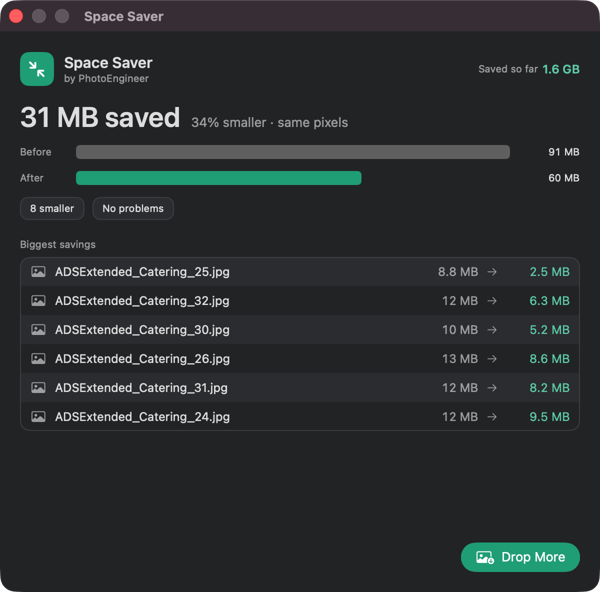
- Space Saver
- Make JPEGs much smaller with no visible change, in bulk. An event's 257 exports went from 2.1 GB to 544 MB.
- Bulk resize and export
- JPEG, TIFF, HEIC and WebP, with presets and watermarks.
- Video
- MOV and MP4 play in the viewer, with stars and labels like any photo.
- 360 footage beta
- Insta360, GoPro MAX and DJI Osmo 360 clips open as 360, steadied, with no other software.
- WebP, AVIF, JPEG XL, HEIC, PNG and TIFF
- View them all; save as WebP.
- Lightroom plug-in
- Your picks arrive in Lightroom as collections, with your preset on.
- The Photo Mechanic® things you rely on
- Metadata templates, code replacements, batch rename, keywords, your own keyboard shortcuts, FTP and Slide Show. Preset-Snapshots keep your Ingest setup, a template or a rename pattern for each client, and your Photo Mechanic® Info view comes across.
Install
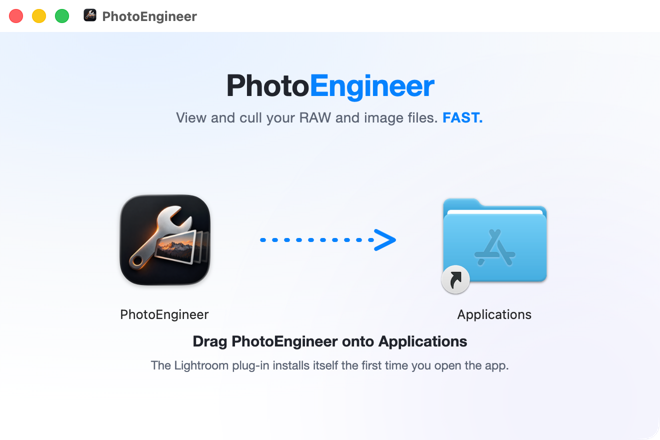
Open the download.
Drag it across.
Drag PhotoEngineer to Applications and open it. macOS checks once that you downloaded it on purpose; it's signed and notarised by Apple. The Welcome screen and the Lightroom plug-in take care of the rest.
Download the free 14-day trial Buy: £20Apple silicon (M1 or later) · macOS 26 · 83 MB · Try it free for 14 days; buy a key when you're sure.
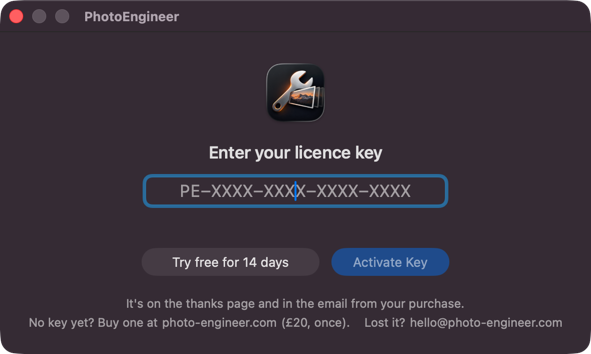
Try it free
Download it. Open it. Press Try free.
Everything works for 14 days. Buy a key whenever you're ready; it's on the thanks page and in your email, and Settings › Licence takes it. One key, two Macs.
Updates
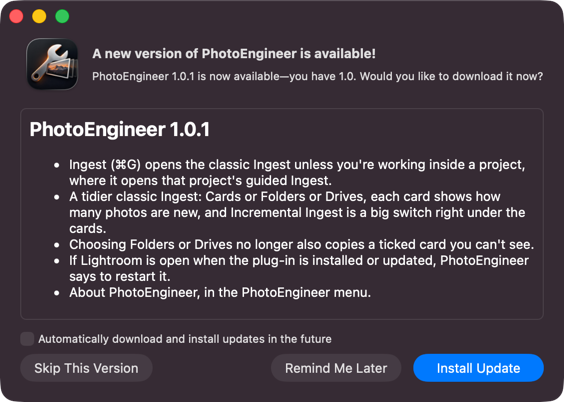
They arrive by themselves.
PhotoEngineer checks once a day and tells you what's new. One click installs it and it reopens just as you left it. Every update is signed.